
Badawi Aminu Muhammed
Data Analyst • Business Intelligence Expert • Research Scientist
Data Analyst • Business Intelligence Expert • Research Scientist
This project demonstrates how to use Excel VBA and ActiveX Controls to create a functional and automated Employee Record Search System.
It combines clean data management, user-friendly search capability, and dynamic column formatting — all within Microsoft Excel.
.xlsm for VBA compatibility.Before running any VBA macros, ensure that Excel can execute ActiveX components safely.
| Sheet Name | Purpose |
|---|---|
| Search Interface | User search input and results display |
| EmployeeData | Holds full dataset (31 columns, starting from Row 1) |
TextBox1) and a CommandButton (CommandButton1) on the Search Interface sheet.Private Sub CommandButton1_Click()
Dim wsData As Worksheet, wsSearch As Worksheet
Dim searchValue As String
Dim lastRow As Long, destRow As Long
Dim cell As Range, rng As Range
Set wsData = ThisWorkbook.Sheets("EmployeeData")
Set wsSearch = ThisWorkbook.Sheets("Search Interface")
searchValue = Trim(wsSearch.TextBox1.Text)
If searchValue = "" Then
MsgBox "Please enter a search term.", vbExclamation
Exit Sub
End If
wsSearch.Rows("7:" & wsSearch.Rows.Count).ClearContents
lastRow = wsData.Cells(wsData.Rows.Count, "A").End(xlUp).Row
Set rng = wsData.Range("A2:A" & lastRow)
destRow = 7
For Each cell In rng
If InStr(1, cell.Value, searchValue, vbTextCompare) > 0 _
Or InStr(1, cell.Offset(0, 1).Value, searchValue, vbTextCompare) > 0 Then
cell.EntireRow.Copy wsSearch.Cells(destRow, "A")
destRow = destRow + 1
End If
Next cell
If destRow = 7 Then
MsgBox "No matching records found.", vbInformation
Else
MsgBox "Search completed.", vbInformation
End If
End Sub
(Paste this into the “Search Interface” sheet module)
Private Sub Worksheet_Activate()
    Cells.EntireColumn.AutoFit
End Sub
EmployeeData (Sheet2).Search Interface (Sheet1) starting from Row 7.This setup is ideal for HR dashboards, employee directories, or data filtering tools.
📺 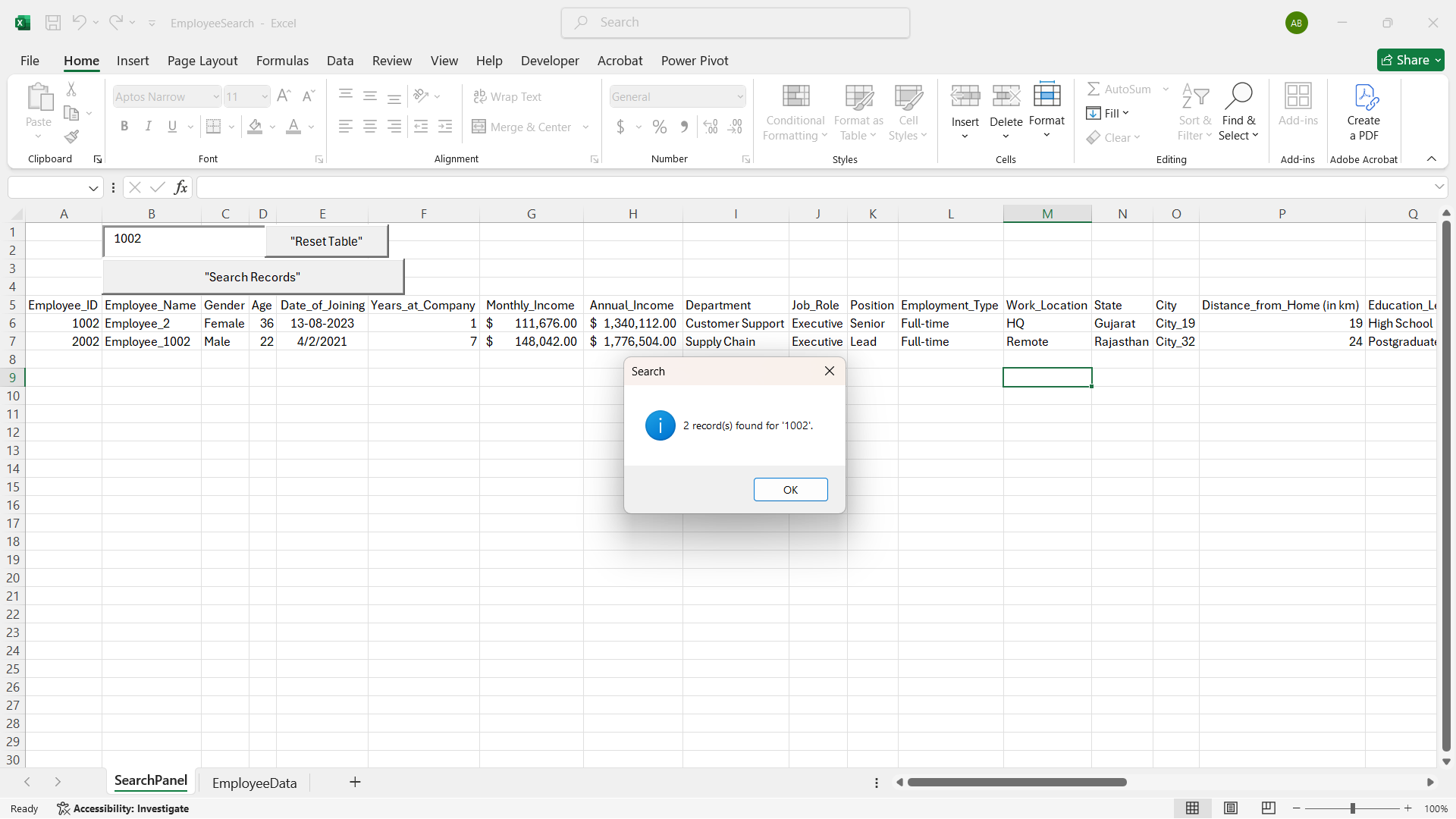
(Click image to view recorded demo)
You can record your screen using Xbox Game Bar (Windows + G) or Mac Screen Recorder (Command + Shift + 5), then save it as
excel_search_demo.mp4in your project root.
| Search Interface | Results Display |
|---|---|
 |
|
Excel-Employee-Search-VBA/
│
├── README.md
├── EmployeeSearch.xlsm
├── excel_search_demo.mp4
└── screenshots/
    ├── search_interface.png
    └── results_display.png
Badawi Aminu Muhammed
Data Analyst | Business Intellince Specialist | Researcher Scientist
📧 cigma.generalsolutions@gmail.com
🌐 linkedin.com/in/elameenbadawy
Cigma General Solutions — "…significant difference"
.xlsm file.Excel VBA • ActiveX Controls • Automation • Data Cleaning • Search Function • HR Analytics